Strategy, creative and execution, all in house.

See pricing →

Every channel, one team, weekly results.

See pricing →

Work that ships weekly and looks like you.

See pricing →

Every channel, one team, weekly results.

See pricing →

Different buildings. Same obsession with leases.

See pricing →

Different buildings. Same obsession with leases.

Pricing and packages →

Different products. Same obsession with pipeline.

All SaaS and technology work →

Different trades. Same obsession with booked jobs.

All home services work →

Different practices. Same obsession with signed clients.

All professional services work →
Thank you! Your submission has been received!
Oops! Something went wrong while submitting the form.

HubSpot

HubSpot workflow examples a B2B team uses every day

Ten HubSpot workflows a B2B team uses every day, grouped by the job they do, with the limits HubSpot sets and the collisions that send one email three times.

HubSpot workflow examples a B2B team uses every day

In this post

  1. toc

The marketing manager of a corporate catering company is in the prep kitchen, peeling allergen labels onto 140 boxed breakfasts for a law firm's training day, when his phone buzzes with a forwarded email. The office manager at a brand new account has received the company's welcome email three times in one hour, and she'd like to know whether she has accidentally ordered three breakfasts.

She hasn't. When he gets to a laptop he finds three workflows, all copied from HubSpot workflow examples found online and all built in good faith. One fires on the new account form, one fires when the contact becomes a customer and one fires when the first order is placed, and every one of them sends the welcome.

The customer didn't feel three times as welcome. That's the trouble with most lists of HubSpot workflow examples, which teach you to build each workflow and never mention the other forty already running in the portal.

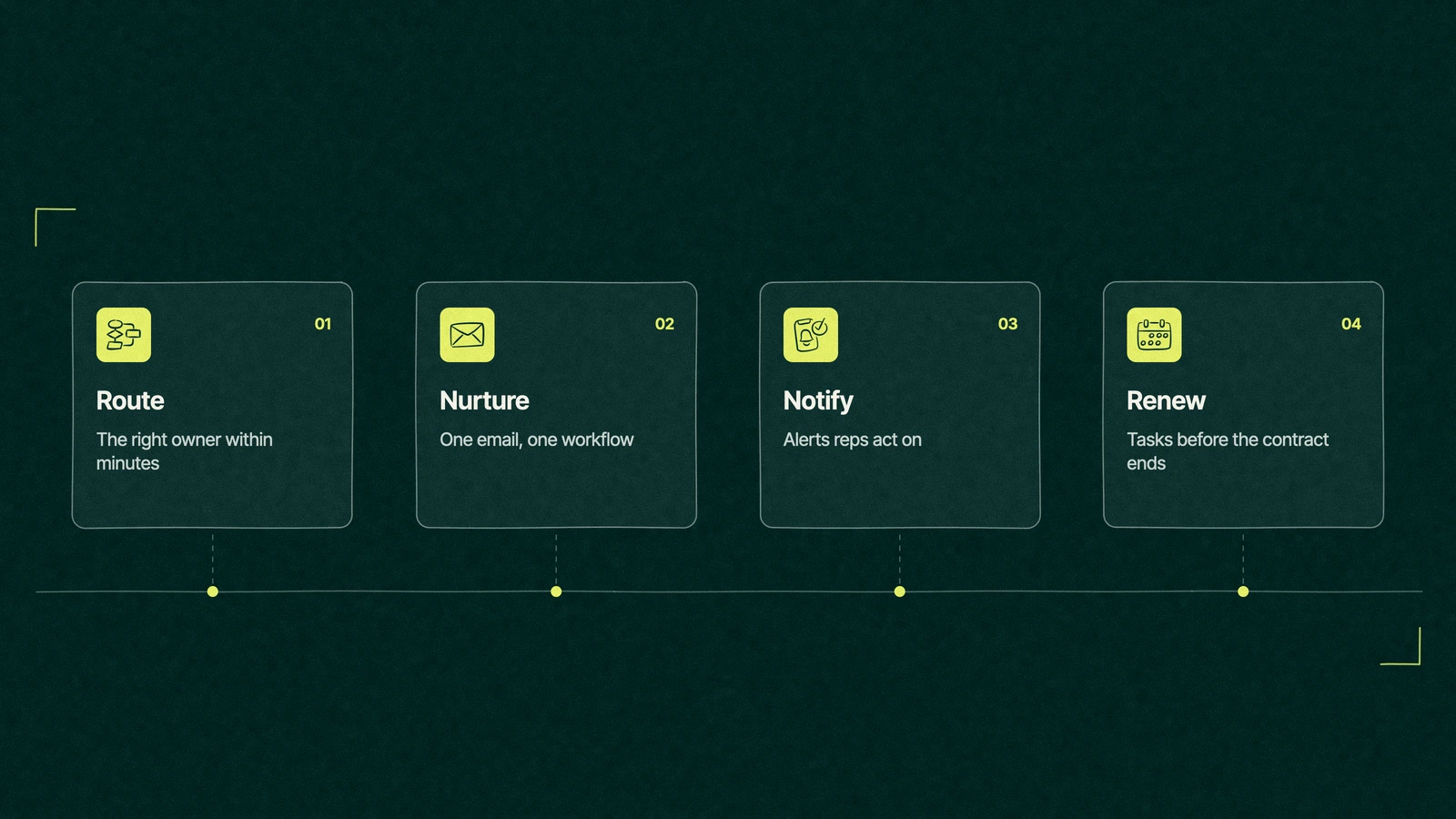
HubSpot workflow examples grouped into five jobs, route, nurture, notify, clean and renew

What are HubSpot workflows?

HubSpot workflows are automated sequences that act on records when they meet a trigger. A trigger can be a form fill, a property change, a date or a webhook, and the actions include sending emails, creating tasks, updating properties and rotating owners. Each workflow runs on one object, such as contacts, companies, deals or tickets.

The full builder comes with Professional and Enterprise editions of HubSpot's main hubs, per the Knowledge Base guide to creating workflows, checked on November 16, 2026. Marketing Hub Starter gets simple workflows for marketing emails, with up to 10 actions each and one workflow per trigger, according to HubSpot's guide to email automation.

Fewer workflows, better portal

Lists of fifteen workflows teach people to build fifteen workflows. The healthiest portals we audit run fewer, and each one has a single job, one owner by name and a purpose that someone can still explain.

Every workflow is a small employee who never sleeps, never asks questions and never checks whether a colleague already sent that email. Ten of them working from the same rulebook will outperform forty working from memory.

So the examples below are grouped by the job they do. If two of your workflows do the same job, you've found your first collision.

Ten HubSpot workflow examples by job

Each example names its trigger, its main branch and the day you'd retire it. They work for most B2B teams selling to businesses, and none needs custom code.

  1. Route new leads by territory. Trigger on a contact with no owner and a country or state set. Branch by region, assign the owner and create a call task. Retire it when you move to round robin or territory sales ends.
  2. Rotate demo requests. Trigger on the demo form. Rotate the owner across the reps on shift and notify the one who gets it. Retire it when a dedicated team takes every demo.
  3. Send one welcome series. Trigger on lifecycle stage becoming customer, and nothing else. Send the welcome, wait, then send the how-to-order email. Retire it when onboarding moves to a customer portal.
  4. Hand qualified leads to sales. Trigger on the lead score threshold property, branch on fit label so only high-fit contacts reach a rep, and send the rest to nurture. Our guide to HubSpot lead scoring covers the threshold. Retire it when the score is rebuilt.
  5. Wake quiet leads. Trigger on no email opens or site visits for 90 days. Send two plain emails, then mark the contact as unengaged. Retire it if those emails stop earning replies.
  6. Flag stalled deals. Trigger on a deal sitting in one stage longer than your average. Create a task for the owner and notify the manager after a second delay. Retire it when forecasting moves to a weekly review that covers the same deals.
  7. Alert on big orders. Trigger on a quote form with a value above your threshold. Send an internal notification to the owner and the account manager. Retire it when those orders get their own pipeline.
  8. Stamp the dates. Trigger on each lifecycle stage change and copy the date into a custom property. Reports on time to customer depend on it, so this one rarely retires.
  9. Fill the gaps. Trigger on a contact associated with a company. Copy the company owner and industry to the contact when they're empty. Retire it when an integration starts writing those fields.
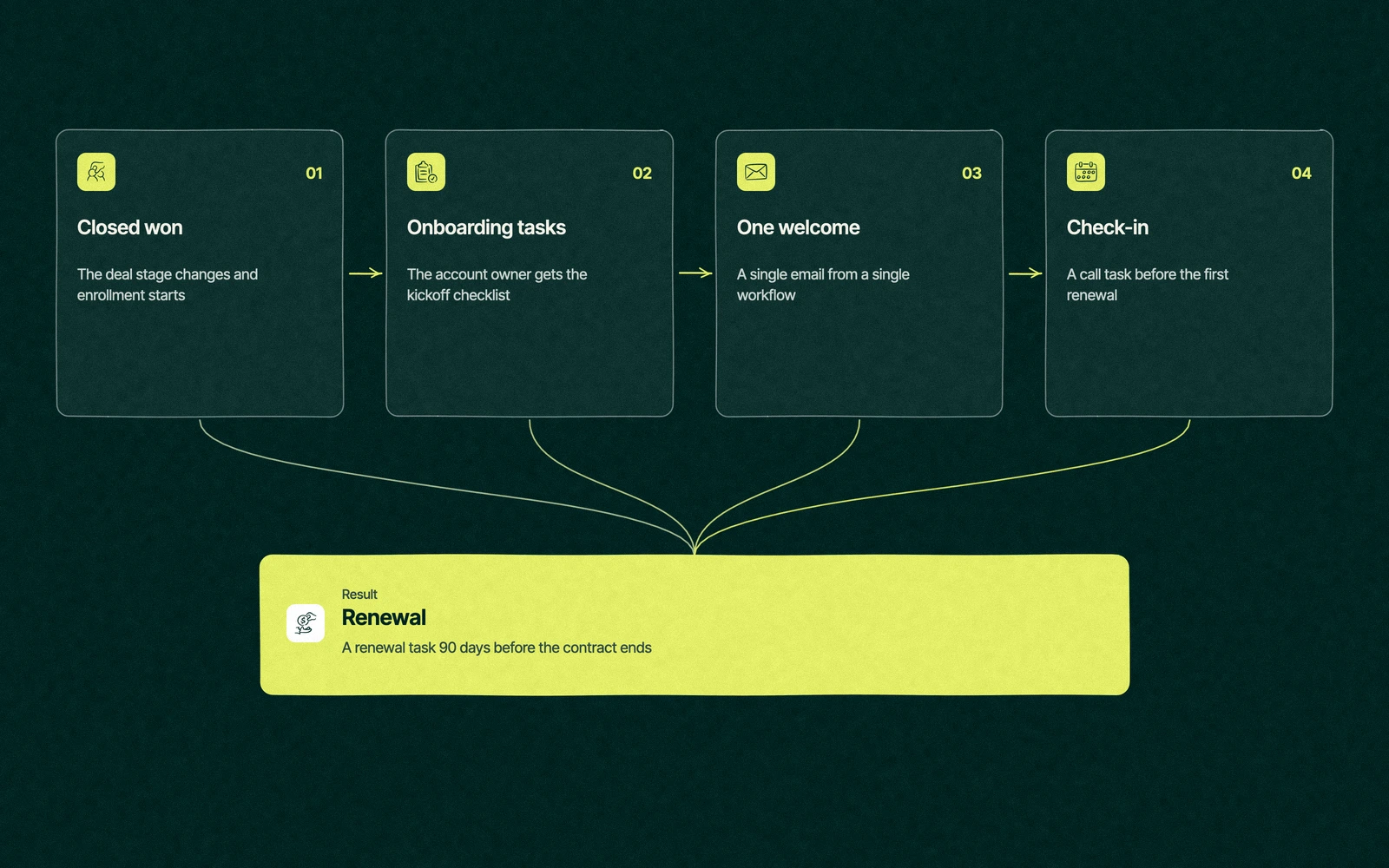
  10. Renew on time. Trigger on a closed won deal with a contract end date. Create onboarding tasks, a check-in call and a renewal task 90 days before the end date. Retire it when Service Hub tickets run renewals instead.
A HubSpot workflow example from closed won deal to onboarding tasks, one welcome email, a check-in and a renewal task before the contract ends

The HubSpot workflow examples above cover most daily work, and advanced HubSpot marketing automation workflows with webhooks, custom code and branching on several objects are worth it once those ten run cleanly. The automation is the cheap part. Agreeing what a customer is, and which workflow says so, is where the time goes.

Trade You.

Your email for great content delivered to your inbox. Regularly. Unless we forget. Or get busy. But we'll try.

Thank you! Your submission has been received!
Oops! Something went wrong while submitting the form.

Workflow anatomy, trigger to goal

Every workflow has the same five parts, and five of the HubSpot workflow examples above show them side by side. Writing them down before you build is the fastest way to spot two workflows doing one job.

ExampleTriggerMain branchGoalRetire it when
Route by territoryNo owner and a region setBy country or stateAn owner within minutesTerritories end
One welcome seriesLifecycle stage becomes customerNoneOne welcome per customerA portal takes over onboarding
Hand to salesScore threshold property changesBy fit labelReps only call good fitsThe score is rebuilt
Flag stalled dealsTime in deal stageBy deal sizeNo deal sits unnoticedA weekly review covers it
Renew on timeClosed won with an end dateBy contract lengthA renewal call before the end dateTickets run renewals

The goal column does the most work. A workflow whose goal you can't state in five words is usually two workflows sharing one name.

What are the limitations of HubSpot workflows?

Most limits are generous, and a few catch teams out. These come from HubSpot's Workflows FAQ at the time of writing.

  • How many you can build. Up to 300 workflows on Marketing, Sales or Service Hub Professional and 1,000 on Enterprise, with 400 and 1,100 on Data Hub. With several hubs, the highest limit applies.
  • Re-enrollment is off by default. A record enrolls the first time it meets the trigger, and a record already active in a workflow can't enroll again.
  • Bulk enrollments queue. Enrolling a large list at once can throttle the workflow, and HubSpot suggests staggering batches by 10 minutes.
  • There's no pause button. You can set pause dates, or turn the workflow off.
  • History runs out. Action logs are kept for 90 days and enrollment history for six months, so investigate collisions early.
  • AI actions cost credits. Actions and triggers that use AI draw on HubSpot credits.

None of these limits stops a workflow from sending the same email another workflow just sent. That one is down to design.

How do you stop HubSpot workflows from colliding?

Collisions happen when two workflows act on the same record for the same reason. The cure is a few house rules that every builder in the portal follows.

Give every customer email one sending workflow and one trigger, ideally a property such as lifecycle stage. Name workflows by job and object, such as "Renew, deal, contract end", so a duplicate shows up in the list. Keep an owner and a one-line goal in each workflow's description, and check a contact's workflow history before building anything that emails customers.

The same thinking applies to HubSpot automations outside the workflow tool, such as sequences in HubSpot and chat flows. Our HubSpot implementation checklist sets these rules on day one, which is far cheaper than finding them out from a customer.

Three welcomes in one hour

Back in the catering kitchen, the fix took the manager an afternoon. He turned the welcome email off in two of the three workflows and kept the one triggered by lifecycle stage, because all three paths ended there anyway.

The new account form workflow now only routes the lead to the right event coordinator, and the first order workflow only creates the follow-up task for the delivery team. Each workflow got one job, and the welcome email got one sender.

A workflow nobody owns is a standing order no one remembers placing. His next step was a list of every workflow in the portal with an owner beside it, and four were switched off before the week was out because not one person in the room could say what they were for.

When to delete a workflow

Switch a workflow off when its goal is met another way, when the team can't name its owner or when it hasn't enrolled a record in a quarter. Clone it before deleting if you might need the logic again, and turn it off for a few weeks first so anything that depended on it complains while the fix is easy.

A yearly clear-out keeps a portal readable. If you're newer to the platform, the basics of HubSpot show where workflows sit among the hubs. For the case for automating in the first place, see the benefits of HubSpot automation.

This is a large share of what we do. Leapyn reviews and rebuilds workflows as part of HubSpot automation services, and a HubSpot audit starts with the list of workflows, their owners and their goals. Our HubSpot consulting team holds HubSpot's Certified HubSpot Solutions Partner listing, working with B2B companies.

Export your workflow list. We'll mark the ones to switch off.

“

The first call felt like talking to someone who already understood our business. We didn’t have to explain the basics. They showed up with questions that mattered.


James L.

Director of Growth, HR tech

Client

FAQ

Frequently asked questions

What are good HubSpot workflow examples to start with?

+

Routing, follow-up and record keeping come first. Workflows can assign owners, send marketing emails, create tasks, send internal notifications, update properties and enroll records in other workflows. They run on contacts, companies, deals, tickets and other objects. Webhooks and custom code extend them to outside systems. They can't judge intent, so the rules that decide who counts as a lead still need people.

Which HubSpot plan includes workflows?

+

The full workflow builder comes with Professional or Enterprise on any of the Marketing, Sales, Service and Data hubs, as well as Smart CRM and Revenue Hub, per HubSpot's help pages in November 2026. Marketing Hub Starter has simple workflows for marketing emails, limited to 10 actions each and one workflow per trigger. The free CRM has none, which is why automation is a common reason to upgrade.

How many workflows should a portal have?

+

Fewer than the limit and enough that each job has one owner. HubSpot allows 300 workflows on Professional and 1,000 on Enterprise, but most B2B portals run well on a few dozen. A useful test is whether someone can name the goal and owner of every active workflow. If they can't, count the ones without an explanation and switch those off first.

Why do HubSpot workflows conflict?

+

Two workflows usually conflict because they share a goal but use different triggers, such as a form fill and a lifecycle change that both send a welcome. Each workflow follows its own rules and can't see the other. Give each customer email a single sending workflow, name workflows by job and object, and check enrollment history before you build anything that emails customers.

Who can audit our HubSpot workflows?

+

An experienced admin on your own team can, given time and the list of active workflows. A HubSpot Solutions Partner brings a checklist and a second pair of eyes. Leapyn audits workflows for B2B companies, listing each one's owner, goal and collisions before anything is changed. Whoever does it, export the list first and turn workflows off before deleting any.

Leapyn frog mark for the Leapyn team, authors of the B2B marketing blog

Written by

The Leapyn team

Senior marketers who run strategy, creative and demand gen for B2B companies. We write about what’s working for our clients right now.

More from this author →

If you like us here, you'll love us on LinkedIn.

Stay updated

Keep reading

Related articles