Strategy, creative and execution, all in house.

See pricing →

Every channel, one team, weekly results.

See pricing →

Work that ships weekly and looks like you.

See pricing →

Every channel, one team, weekly results.

See pricing →

Different buildings. Same obsession with leases.

See pricing →

Different buildings. Same obsession with leases.

Pricing and packages →

Different products. Same obsession with pipeline.

All SaaS and technology work →

Different trades. Same obsession with booked jobs.

All home services work →

Different practices. Same obsession with signed clients.

All professional services work →
Thank you! Your submission has been received!
Oops! Something went wrong while submitting the form.

HubSpot

CRM data migration, a checklist for moving into HubSpot without losing history

A CRM data migration checklist for moving into HubSpot, ordered by what is hardest to rebuild, with object mapping and a case for leaving some data behind.

CRM data migration, a checklist for moving into HubSpot without losing history

In this post

  1. toc

The office manager of a landscaping supply yard that opened thirty years ago is in the scale house, waiting for a dump truck of river rock to settle on the scale, with the export from the yard's old CRM open on the counter. The founder bought that CRM when the yard sold its first pallet of pavers. This spring the yard is moving to HubSpot, and the CRM data migration is his job.

Most of the export is tidy. Names, phone numbers, addresses, the landscaping firms and the homeowners who buy mulch by the truckload. Then he reaches a column called Comments and finds a decade of history in one text field per customer.

Delivery windows, which foreman to call, who pays in thirty days and who needs a reminder, a dog at the side gate, a dispute about a pallet count from six summers ago. All of it sits in one long cell per customer, and none of it fits a field HubSpot has.

That cell is what CRM migrations lose. Records move easily, and this checklist is ordered around the history that doesn't, from a team that moves companies into HubSpot for a living.

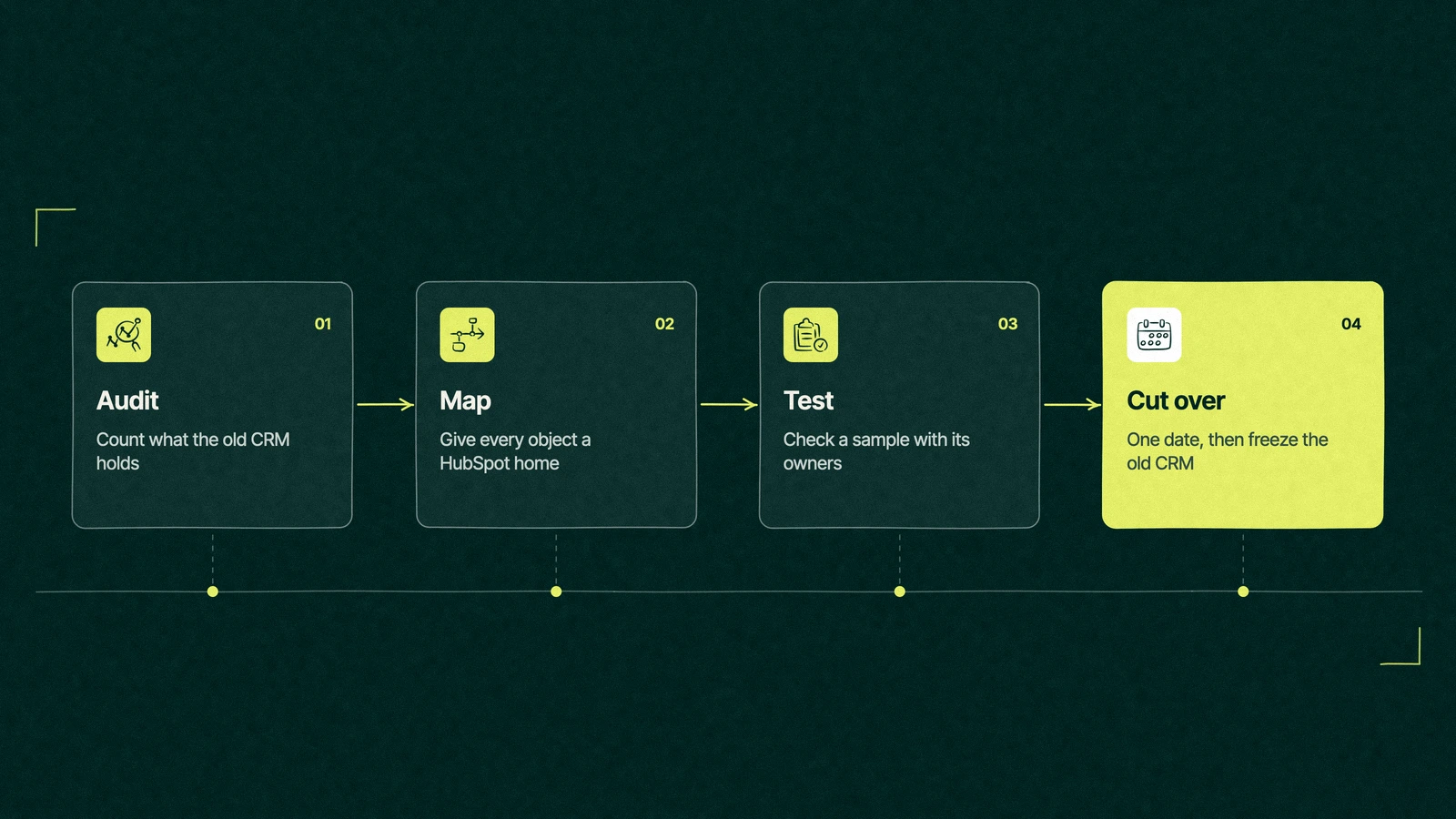
CRM data migration shown as four cards in sequence, audit the old CRM, map objects to HubSpot, test a sample and cut over

What is CRM data migration?

CRM data migration is moving your customer records, their history and the links between them from one CRM into another. That covers contacts, companies, deals and tickets, plus the calls, emails, meetings, notes and attachments on each one. A good migration also decides what stays behind, and writes that decision down.

The vendor guides that rank for this search all list the same steps, plan, clean, map, test and move. They're right about the steps and quiet about the order, which is where most moves go wrong.

Records move, history doesn't

A contact is a row with a name and an email address, and every CRM can import a row. History is harder, because it lives in activities, associations and dates that only make sense next to the record they belong to.

Three kinds of history get lost most often. The activity timeline of emails, calls and meetings, the associations that say which contact belongs to which company and deal, and the dates and reasons on closed deals, including why you lost them.

Lose the timeline and a rep calls a customer who complained last week. Lose the associations and a company record shows no deals. Lose the closed-lost reasons and the next pricing argument starts from opinions.

Every CRM data migration guide mentions history, usually in one line near the end. It deserves the front of the plan, because no one can type it back in later.

A CRM migration that carries only the records looks finished on the first day and falls apart in the third month, when someone opens an account and finds it has no past.

The migration checklist, hardest to rebuild first

This HubSpot migration checklist runs in the order of what is hardest to get back if it goes wrong, which is close to the reverse of the order most teams work in.

  1. Decide who owns the move. One person signs off on mappings and the cutover date, and in HubSpot that person needs Super Admin access to run Smart Transfer.
  2. Count what the old CRM holds. Records per object, fields per object, how many are filled in, and which apps write into the CRM. The count tells you what the move involves before anyone quotes it.
  3. Protect the activity history. Find out which emails, calls, meetings and notes your route can carry, and export the rest as a backup before anything else changes.
  4. Keep the associations. Carry the old record IDs into HubSpot, so contacts, companies and deals can be relinked if anything arrives orphaned.
  5. Keep the dates and reasons on closed deals. Create and close dates, stage history where the route allows it, and closed-lost reasons as a property, not a note.
  6. Map users and owners. Every record needs an owner in HubSpot, including the ones owned by people who left years ago.
  7. Map fields last, and fewer of them. Each old field gets a HubSpot property, a merge into another property, or a written decision to leave it behind.
  8. Rebuild automation after the data lands. Assignment rules, follow-up tasks and alerts get rebuilt and tested on real records, not copied blind.

Fields come last on purpose. Teams spend weeks arguing about properties, which are easy to add later, and an afternoon on activity history, which is very hard to add later.

Write each decision into one mapping document as you go, old field on the left, HubSpot property or "left behind" on the right. That document is the CRM data migration in miniature, and it's the first thing anyone will ask for when a number looks wrong in month two.

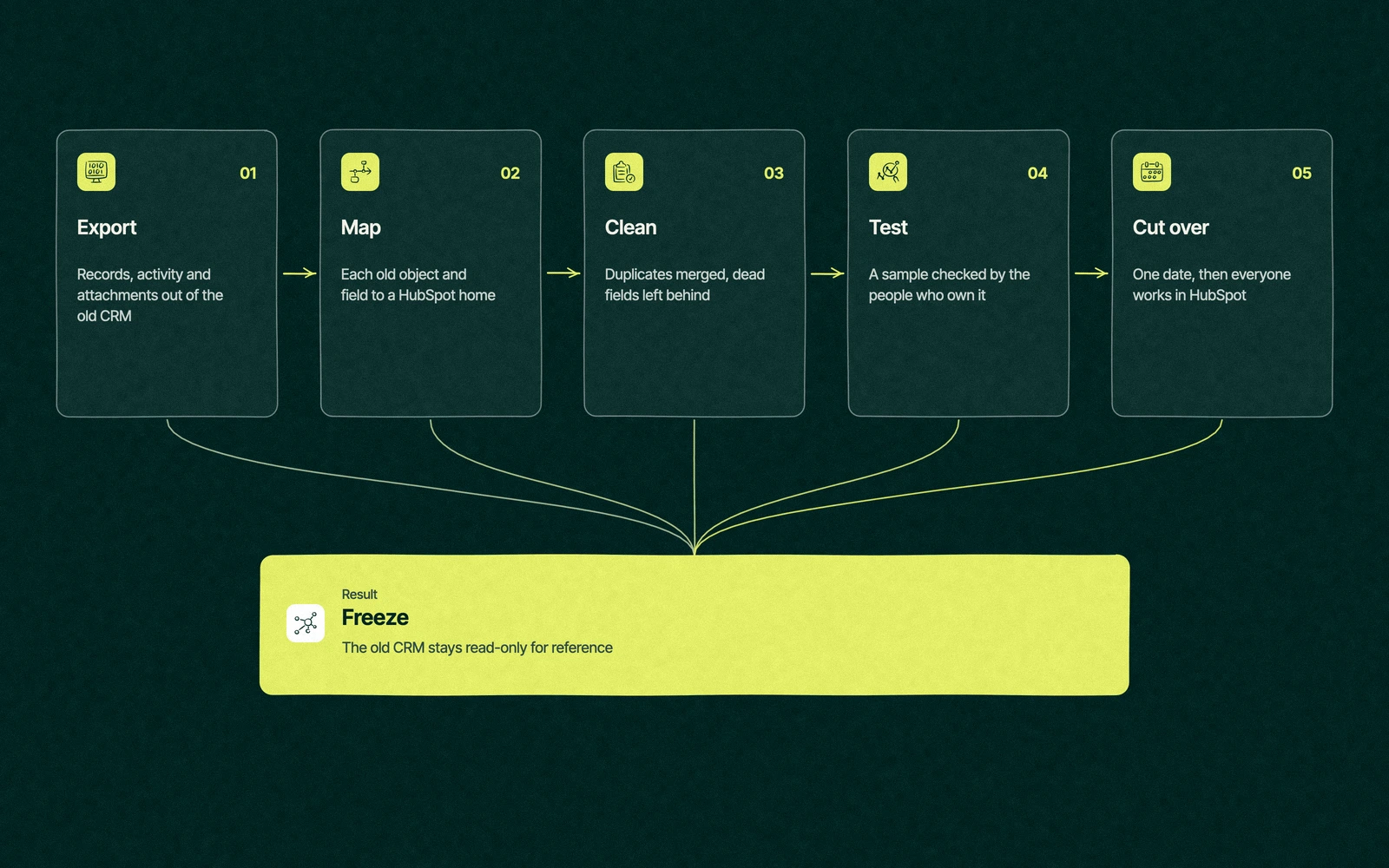
CRM data migration into HubSpot as a flow from export and mapping through cleaning and a test import to cutover, ending with the old CRM frozen

Trade You.

Your email for great content delivered to your inbox. Regularly. Unless we forget. Or get busy. But we'll try.

Thank you! Your submission has been received!
Oops! Something went wrong while submitting the form.

How do objects map from Salesforce, Pipedrive and Zoho into HubSpot?

For supported apps, the route is HubSpot's Smart Transfer tool, which copies data one way into HubSpot on every plan. That list includes Salesforce, Pipedrive and Zoho CRM, the three sources we see most. The table follows HubSpot's object mappings for each supported app, as published on November 16, 2026.

HubSpot objectSalesforcePipedriveZoho CRMNotes
ContactsContacts, Leads and Person AccountsPeopleLeads and ContactsLeads and contacts merge into one object, so plan a property that keeps the difference
CompaniesAccountsOrganizationsAccountsHubSpot deduplicates companies by domain, so clean the domains first
DealsOpportunitiesDealsDealsSmart Transfer adds its own workflows to set the right create and close dates
TicketsCasesNot mappedNot mappedZendesk tickets map too, if service runs there
ActivitiesEmail messages, events, tasks and notesCalls, meetings, tasks, notes and email activitiesCalls, meetings, tasks and notesPipedrive activities need a Data Hub subscription to sync, and logged Pipedrive emails don't transfer
AttachmentsOne-time transfer after the syncOne-time transfer after the syncOne-time transfer after the syncThey don't stay in sync after that transfer

A legacy CRM that isn't on HubSpot's list goes through the standard import tool instead. On any paid plan, HubSpot's import file limits allow files up to 512 MB, 1,048,576 rows per file and 10,000,000 rows a day, while the free tools stop at 20MB files and 500,000 rows a day.

Comparing platforms before the move? Our pieces on comparing HubSpot with Pipedrive and weighing Zoho against HubSpot cover the decision itself.

What are the most common HubSpot data migration pitfalls?

Most of the common HubSpot data migration pitfalls are small decisions that were never made on purpose. These are the ones we see most.

  • Running Smart Transfer next to a live Salesforce sync. HubSpot warns that the two match records differently and create duplicates on both sides. Companies keeping Salesforce should be running the Salesforce integration instead.
  • Forgetting the subscription a step needs. Custom field mappings need Data Hub, and a HubSpot Enterprise migration that carries custom objects needs an Enterprise subscription, since custom objects are Enterprise only.
  • Assuming automation comes across. HubSpot's Smart Transfer lists workflows and automations as a data type for Salesforce, Zoho CRM and Zendesk only. Anything else gets rebuilt, and anything that does come across still gets tested before it's switched on.
  • Importing duplicates on purpose. HubSpot merges contacts by email and companies by domain, so two records with one shared office email become one contact you didn't expect.
  • Moving dead fields. Every unused field you import becomes a property someone has to explain. Smart Transfer can mark empty properties for deletion after the move, and fewer still is better before it.
  • Cutting over in the busy season. A sales team learning new screens during its best month will quietly go back to the old CRM.

A legacy CRM adds one more trap. Older systems often store dates as text and keep owners as free-typed names, so a CRM data migration from them needs a cleaning pass that a Salesforce or Zoho move can skip.

The way to stop losing HubSpot data during migration is boring. Test a sample, have the people who own those records check them, and only then move the rest.

Ten years in one comments field

The office manager at the supply yard can't map the Comments column, so he doesn't try to. He splits the problem in three, and it takes him two afternoons in the scale house between trucks.

Three facts get their own HubSpot properties, because people search and filter on them every day. Delivery window, payment terms and the foreman to call. He copies those out by hand for the two hundred customers who still buy from the yard each season.

The rest of each comment becomes one note on its company record, dated the day of the import and labeled as history from the old CRM. Nothing is lost, and nobody pretends that a decade of shorthand is clean data.

The customers who haven't bought anything since the yard stopped selling railroad ties stay behind in the export file, which goes into a locked folder. The new CRM opens with the customers the yard still has, and the dog at the side gate is now a delivery note the drivers can read.

What to leave behind on purpose

A migration is the one moment a company can drop data without anyone asking why. Leaving things behind is a decision, and it should be written down with the mapping.

  • Contacts with no email, no activity and no deal in five years, unless finance or legal needs them kept.
  • Empty fields created by someone who left the company years ago.
  • Old automations that existed to work around the old CRM's limits.
  • Duplicate pipelines made for one campaign and never closed.

Keep the full export as an archive with a named owner and a date to delete it. Old data you can find is a backup, and old data in your new CRM is clutter with a login.

Test, cut over, freeze

Run a test import of a few hundred records that cover every object, then ask the reps and account managers who know those customers to check their own. They'll spot a missing deal or a wrong owner faster than any report.

Pick one cutover date, outside your busiest season. On that date the old CRM goes read-only, forms and inboxes point at HubSpot, and the team's first task is to work their open deals in the new tool. Our setup checklist that follows a move covers the build around the data.

Freeze the old CRM for a few months instead of switching it off on day one. Someone will need to look up an old quote, and a read-only login costs less than a panic.

Teams new to the platform can read what HubSpot holds once you're in before any of this, since the move goes faster when everyone knows where things will live.

Leapyn moves companies into HubSpot as a HubSpot partner agency, under HubSpot's Certified HubSpot Solutions Partner program. Our CRM migration into HubSpot covers the audit, mapping, history and cutover, quoted as one fixed fee before the first record moves.

Open the oldest record in your CRM. We'll make sure its history makes the trip.

“

The first call felt like talking to someone who already understood our business. We didn’t have to explain the basics. They showed up with questions that mattered.


James L.

Director of Growth, HR tech

Client

FAQ

Frequently asked questions

How long does a CRM data migration take?

+

Small, tidy accounts can move in a week or two, and HubSpot says a Smart Transfer sync can take several hours depending on volume. Larger accounts carrying a long activity history, custom objects and connected apps usually run four to ten weeks, because mapping decisions, a test import and checks by record owners take longer than the transfer itself.

Do HubSpot workflows migrate from another CRM?

+

Mostly they get rebuilt. HubSpot's Smart Transfer lists workflows and automations as a data type only for Salesforce, Zoho CRM and Zendesk, and creates a few helper workflows of its own to set dates. Everything else, such as Pipedrive automations or a legacy CRM's rules, gets rebuilt in HubSpot after the data lands, then tested on real records.

What data should you not migrate?

+

Leave out contacts with no email, activity or deal in years, fields that stay empty, duplicate pipelines and automations that only worked around the old CRM. Keep the full export as an archive with an owner and a delete date, so nothing is lost. Check with finance or legal first if records must be kept for a set period.

How do you keep email history in a CRM migration?

+

Check what your route carries before you start. HubSpot's Smart Transfer brings Salesforce email messages and Pipedrive email activities across as email activities, but logged Pipedrive emails don't transfer and need exporting separately. Connecting inboxes to HubSpot on cutover day keeps new threads logged from then on, and attachments come over in a one-time transfer.

Who can migrate our CRM into HubSpot?

+

For supported apps, any Super Admin in your HubSpot account can start Smart Transfer, and a small account often needs nothing more. For years of history, custom objects or a legacy CRM, many teams hire a HubSpot data migration partner. Leapyn does this as one fixed fee. Whoever you pick, ask how they'll protect activity history and associations, not only records.

Leapyn frog mark for the Leapyn team, authors of the B2B marketing blog

Written by

The Leapyn team

Senior marketers who run strategy, creative and demand gen for B2B companies. We write about what’s working for our clients right now.

More from this author →

If you like us here, you'll love us on LinkedIn.

Stay updated

Keep reading

Related articles